Build your vendor master file
One row per vendor — the identity and address information your ERP already holds. Not sure how to pull it? The ERP export guide shows where it lives in each system.
Tip: format Vendor Number as text so leading zeros survive| System | Vendor Number | Vendor Name | City | Tax ID | Website |
|---|---|---|---|---|---|
| SAP | V001234 | Acme Office Supplies LLC | Dallas | 12-3456789 | acme.com |
| SAP | V005678 | Staples Inc. | Framingham | 04-3390816 | staples.com |
| ORA | V000099 | Office Depot | Boca Raton | 59-2663954 | officedepot.com |
Build your spend file
Your actual spend — what you were billed or paid — rolled up to one row per vendor, per company, per month. Six columns, and the vendor numbers must match your master file.
Use AP / invoice data — not purchase orders| System | Vendor Number | Company | Year | Month | Amount |
|---|---|---|---|---|---|
| SAP | V001234 | Contoso HQ | 2025 | 1 | 12,500.00 |
| SAP | V001234 | Contoso HQ | 2025 | 2 | 9,800.50 |
| ORA | V000099 | West Region | 2025 | 3 | 31,000.00 |
Save both as CSV
Save each file as CSV. You don’t have to match our column names — if you do, SpendAware auto-maps them; if not, you map them in a click during import.
Download blank templates right from the Data LoaderImport your files — together
Open the Data Loader and upload both files at once. Loading them together is better: SpendAware compares them and shows how well they line up. Running multiple ERPs? Load each system separately — it brings them together.
Upload → Map → Review → Import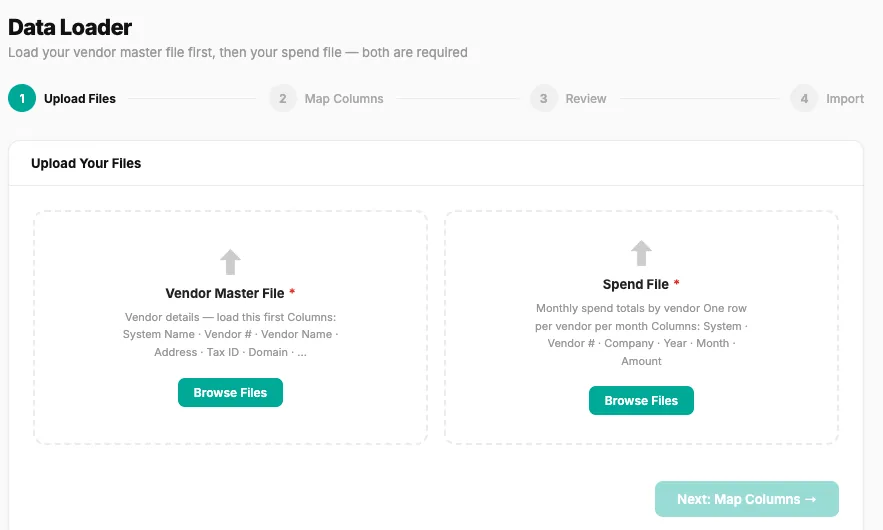
Check it before you trust it
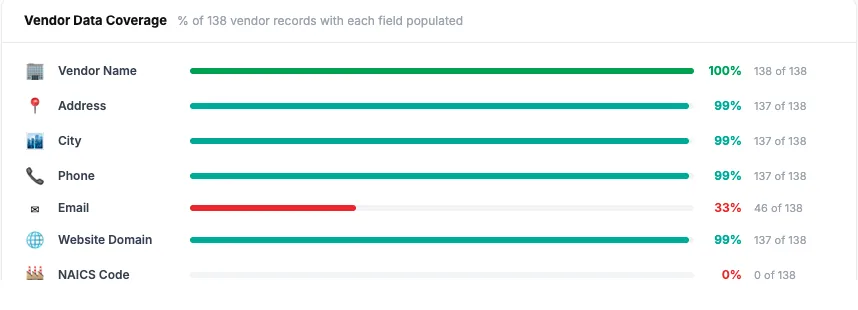
Open Data Health to see exactly what loaded cleanly and what’s thin. Vendor name and amount should be nearly full; email and NAICS being low is normal — the AI fills NAICS next. Watch for spend that didn’t match a vendor.
Let the AI classify and enrich
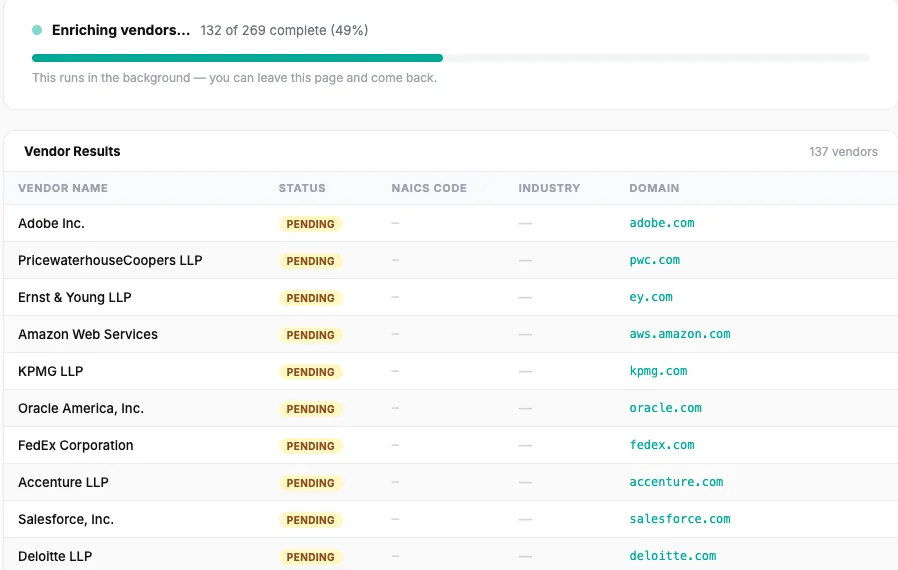
Enrichment runs on its own: the AI assigns a NAICS code, industry, and website to each vendor, dedupes variant names across your systems, and maps everything into your categories. You review and override — and only pay when it works.
Fill the gaps the AI couldn’t
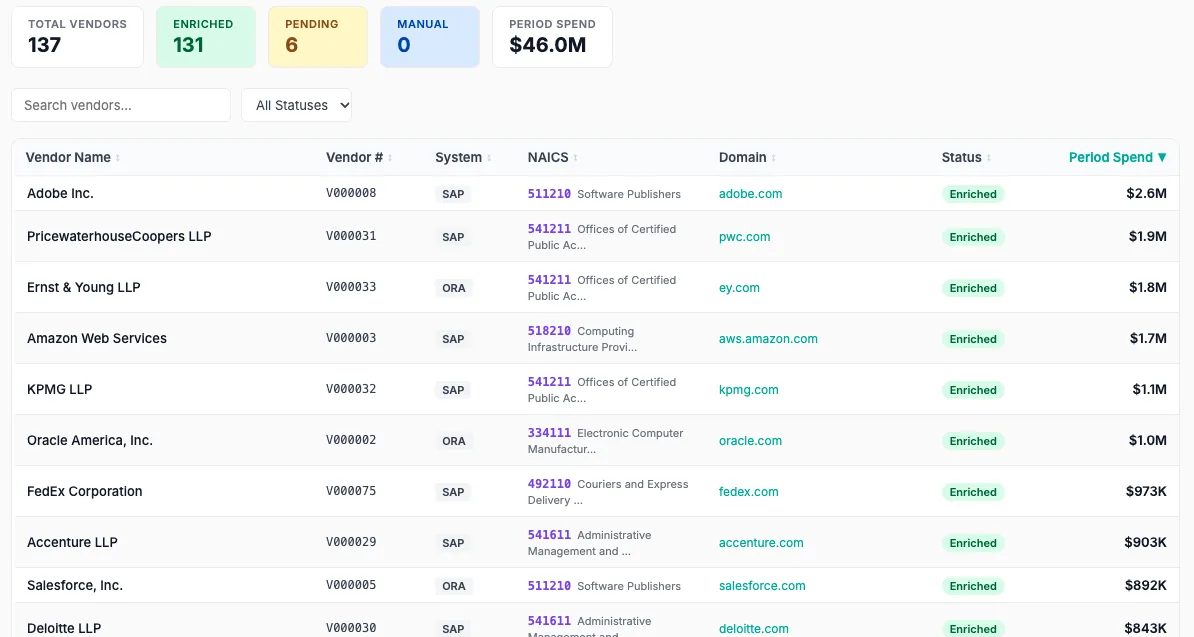
The AI gets the large majority, but not every vendor. Open Vendor Explorer and scroll to the bottom — the un-enriched vendors are gathered there for you to review and finish by hand. A few minutes closes the long tail.
Set up your spend categories
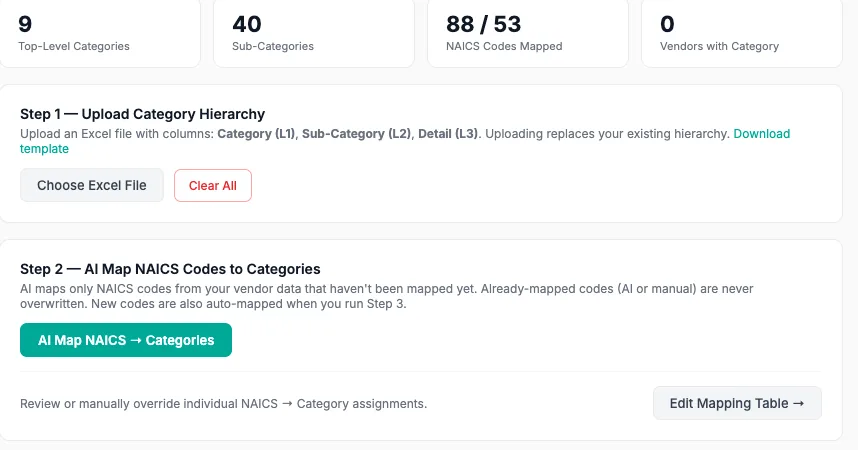
Think about spend in your own language. In Admin → Spend Categories, upload your Category / Sub-Category / Detail hierarchy, let the AI map your NAICS codes into it, and apply it to every vendor — re-run any time you load new data.
Add your vendor attributes
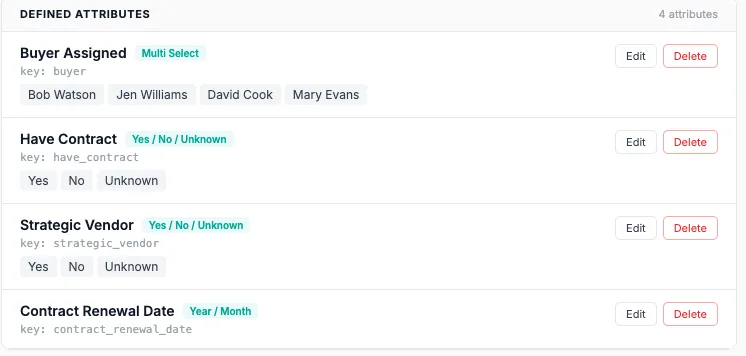
Track what the ERP never did. In Admin → Vendor Attributes, add fields like vendor status, primary buyer, contract and COI dates, auto-renewal, or payment terms — single-select, multi-select, yes/no, dates, or free text. Fill them per vendor, or with the bulk template.
See your real spend picture
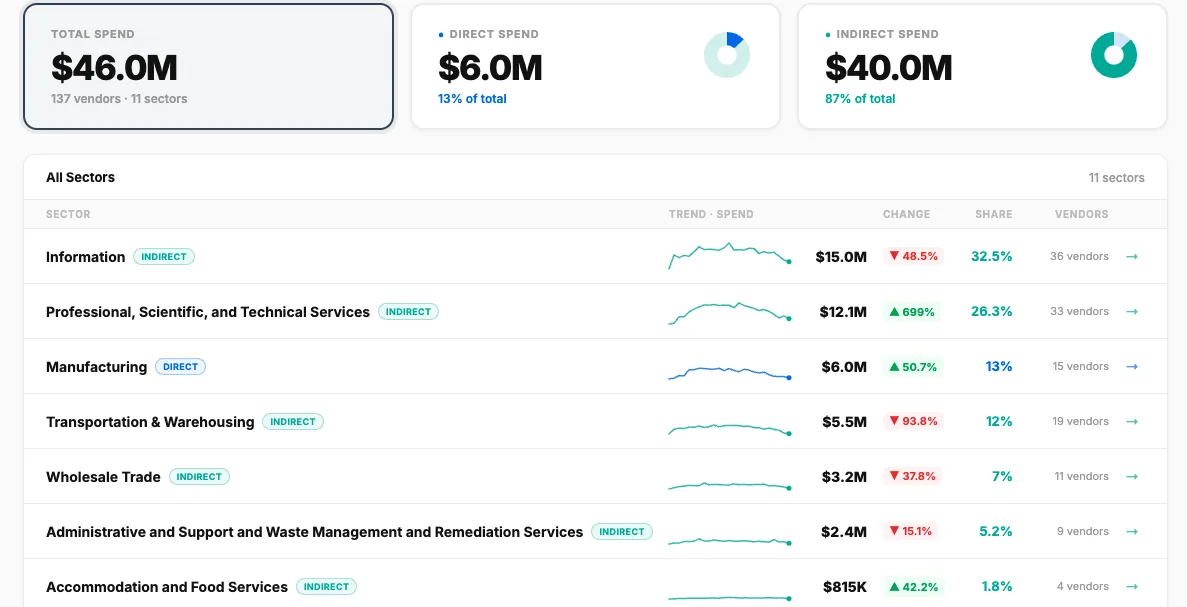
The payoff. In Spend Analysis, slice spend by category and commodity — direct vs. indirect, where it’s concentrated, who the dollars flow to — and ask the AI for the read you need: procurement, finance, risk, or executive. No implementation. You did it yourself.
Ready? Start free and load your own 100 vendors.
Start free